
As AI systems move beyond simple chatbots, they increasingly rely on external tools, resources, and prompts to perform real-world tasks. The Model Context Protocol (MCP) was designed to standardize how AI models interact with these tools. However, working directly with MCP servers can be complex, especially when debugging, testing, or managing multiple servers.
This is where MCP Tools (mcptools) comes in.
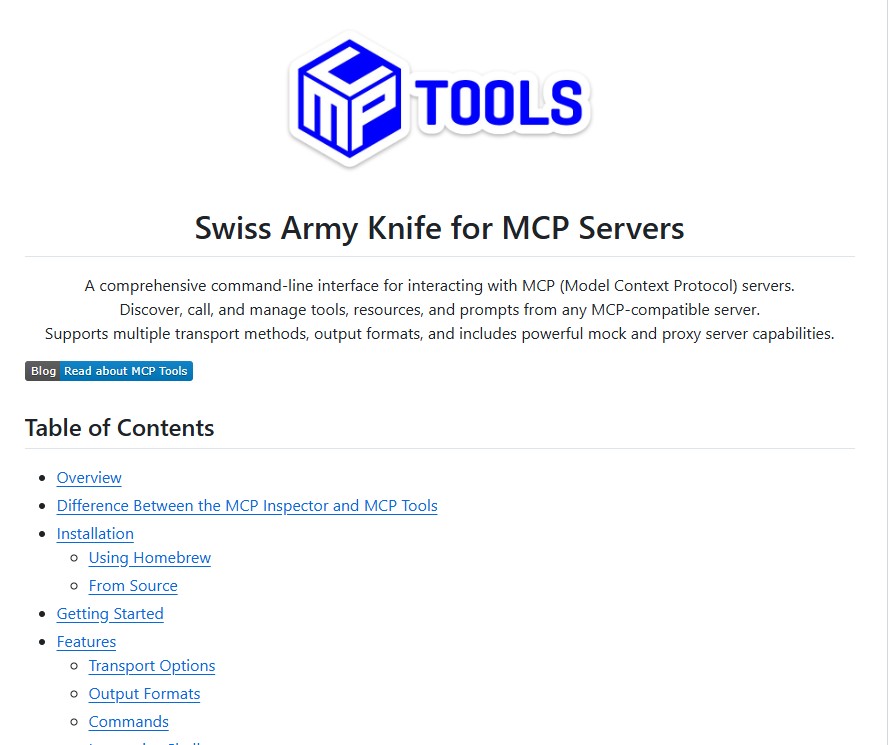
MCP Tools is a powerful command-line interface (CLI) that allows developers to discover, call, test, proxy, mock, and guard MCP servers using both stdio and HTTP-based transports. It acts as a universal toolkit for anyone building, testing, or managing MCP-based AI systems.
What Is MCP Tools
MCP Tools is an open-source CLI written primarily in Go that helps developers interact with any MCP-compatible server. It allows you to list available tools, resources, and prompts, call them with structured parameters, and inspect responses in multiple formats.
Beyond basic interaction, MCP Tools also includes advanced features such as mock servers, proxy servers, guard mode for access control, project scaffolding, and configuration management across popular AI applications.
In short, MCP Tools turns MCP development from a low-level protocol task into a practical, developer-friendly workflow.
Why MCP Tools Is Important
Working directly with MCP servers often involves raw JSON-RPC calls, manual testing, and limited visibility into server behavior. MCP Tools solves these problems by providing:
- A consistent CLI interface across all MCP servers
- Human-readable and machine-readable output formats
- Built-in debugging and logging
- Easy experimentation without writing custom clients
This makes MCP Tools especially valuable for AI engineers, platform builders, and teams building agent-based systems.
Core Capabilities
MCP Tools provides a wide range of features that cover the entire MCP lifecycle.
You can discover tools, resources, and prompts exposed by any MCP server with a single command. You can then call those tools using structured JSON parameters and immediately view the response.
It supports mock servers, allowing you to simulate MCP servers for testing without implementing a real backend. This is extremely useful when developing client applications or testing AI agent behavior.
The proxy mode lets you register shell scripts or inline commands as MCP tools. This means you can turn almost any script into an AI-callable tool without writing a server.
The guard mode allows you to restrict access to specific tools, prompts, or resources. This is critical for security, especially when exposing file systems or sensitive operations to AI models.
Transport Support
MCP Tools supports all major MCP transport methods.
The stdio transport uses standard input and output and is ideal for local tools and command-line servers.
The HTTP SSE transport supports legacy MCP servers that use Server-Sent Events.
The streamable HTTP transport, which is the recommended modern approach, supports session management, resumable connections, and both streaming and non-streaming responses. MCP Tools automatically detects and uses the appropriate transport based on the server URL.
This flexibility allows MCP Tools to work seamlessly with both local and remote MCP servers.
Output Formats and Developer Experience
One of the standout features of MCP Tools is its output formatting.
The default table format displays tools in a colorized, man-page-style layout that clearly shows required and optional parameters. This makes it easy to understand how to use a tool without reading raw schemas.
For scripting and automation, MCP Tools also supports compact JSON output and pretty-printed JSON. This allows easy integration with tools like jq, CI pipelines, and other automation workflows.
Interactive Shell and Web Interface
MCP Tools includes an interactive shell that allows you to explore and call MCP tools within a persistent session. This is especially useful for rapid testing and experimentation.
In addition, MCP Tools offers a browser-based web interface. This UI automatically generates forms from tool schemas, supports complex parameters, and displays formatted responses. It provides a visual way to interact with MCP servers without writing any code.
Project Scaffolding and Configuration Management
MCP Tools can scaffold new MCP servers using TypeScript, including server setup, tool definitions, and transport configuration. This dramatically reduces the time needed to start a new MCP project.
It also includes advanced configuration management features that can scan, edit, and synchronize MCP server configurations across popular AI tools such as VS Code, Cursor, Windsurf, and Claude Desktop. This makes MCP Tools a central control point for managing MCP environments.
Proxy and Guard Modes
The proxy mode is one of the most powerful features of MCP Tools. It allows shell scripts to be registered as MCP tools, with parameters passed as environment variables. The script output is returned directly to the AI model.
Guard mode adds a security layer by filtering which tools, prompts, or resources are visible or callable. Using simple pattern matching, you can create read-only environments, sandboxed servers, or tightly controlled AI capabilities.
Real-World Use Cases
MCP Tools is widely used for:
- Testing AI agents that rely on MCP tools
- Debugging MCP servers during development
- Rapidly turning scripts into AI-accessible tools
- Securing MCP servers with restricted access
- Managing MCP configurations across multiple applications
It is equally useful for solo developers and large teams building AI platforms.
Conclusion
MCP Tools lives up to its description as the Swiss Army Knife for MCP servers. It simplifies development, testing, security, and management of MCP-based tools through a single, powerful CLI.
By supporting all MCP transports, offering rich output formats, enabling mock and proxy servers, and providing strong guard capabilities, MCP Tools removes much of the friction involved in building tool-enabled AI systems.
For anyone working with the Model Context Protocol, MCP Tools is not optional—it is essential.
Follow us for cutting-edge updates in AI & explore the world of LLMs, deep learning, NLP and AI agents with us.
Related Reads
- Orion: The Next Evolution in Visual AI for Advanced Reasoning and Multi-Modal Intelligence
- Fara-7B: Microsoft’s Breakthrough Agentic Model for Real-World Computer Use
- MiniMax-M2.1: An Open-Source Leap Toward Enterprise-Grade Agentic AI
- Supabase: The Complete Guide to the Open-Source Postgres Development Platform
- K-EXAONE-236B-A23B: A Deep Dive into LG AI Research’s Frontier Multilingual Reasoning Model